EDIT SHAPES
Select a shape
Open the Shapes tab and press a shape on the drawing: its card appears beside it with its tools, and the tab shows its facts.
Free · no credit neededHow do I select a shape?
- Open the Shapes tabPress Shapes beside the canvas. The drawing takes the Shapes look: every shape its own color, touching shapes always apart.
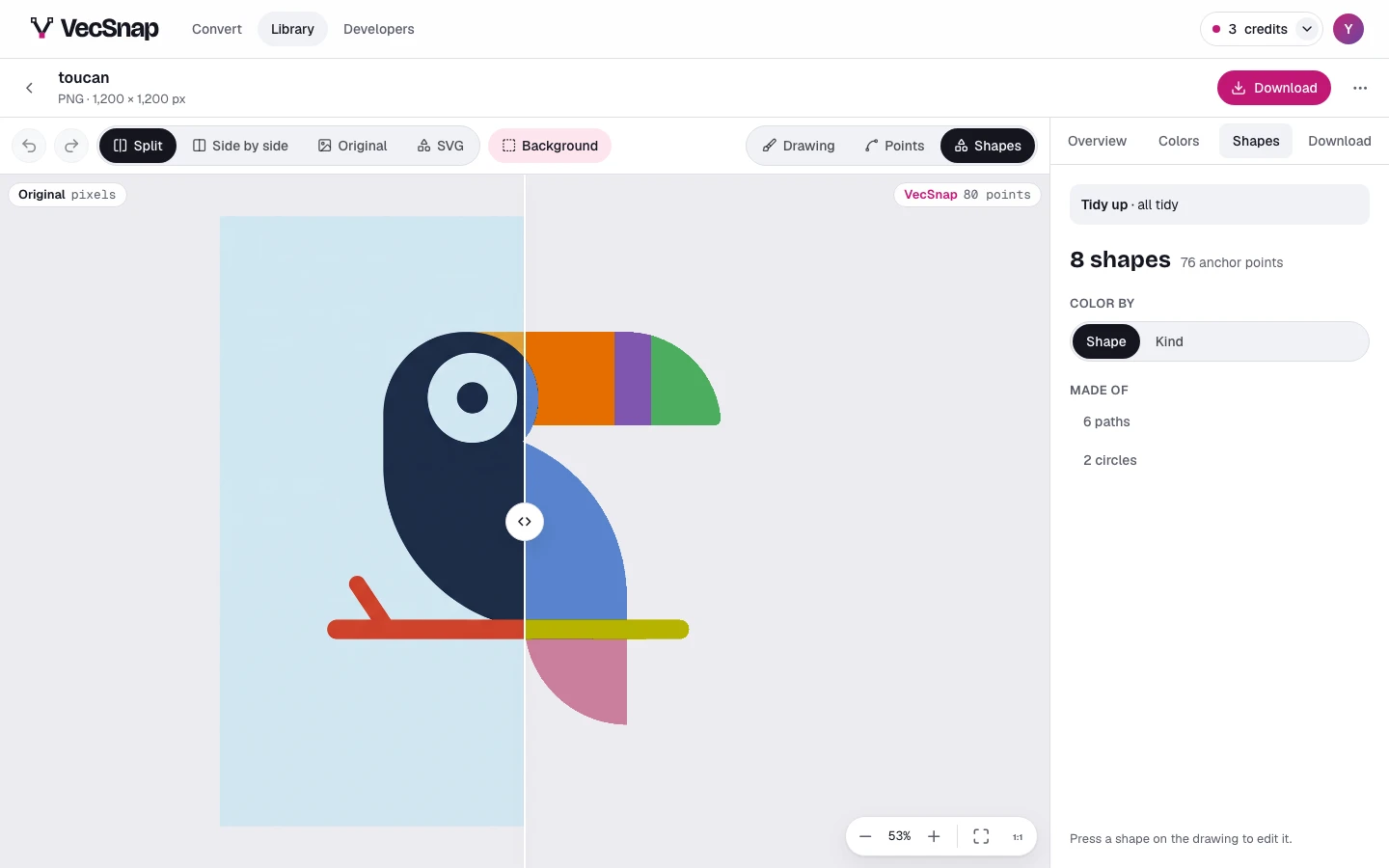
The Shapes tab: every shape of the toucan in its own color. - Press a shape on the drawingPoint at a shape to see its name, then press it. Its box and its card appear beside it, and the tab shows its facts.
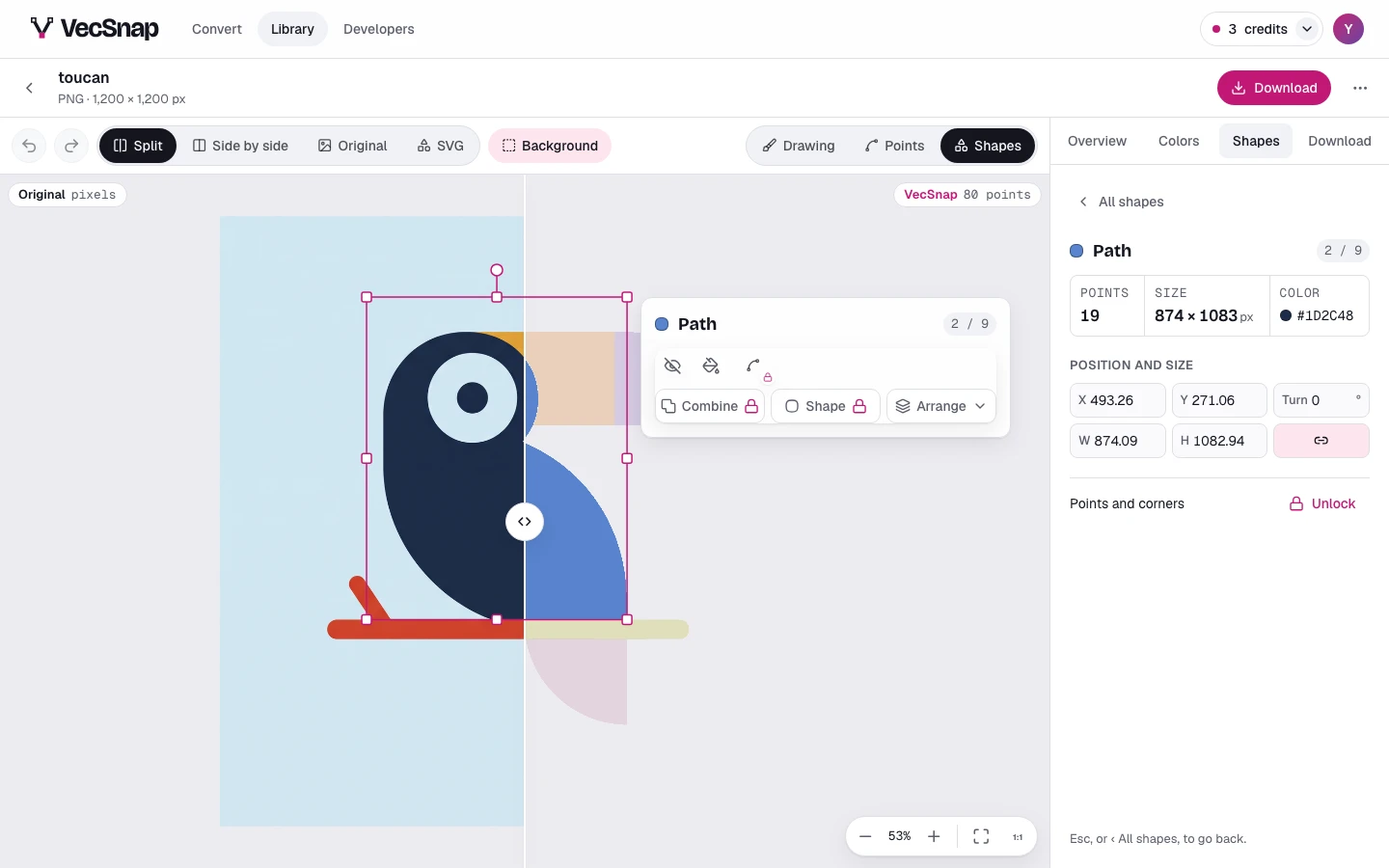
A shape pressed: its box on the drawing, its card beside it. - Let it goPress
Esc, or the arrow at the top of the tab, to go back to every shape.The tab with one shape: its anchor points, its size and its color.
What does the card hold?
The shape's kind and its number, then its tools: the quickest as icons, such as Hide and Color, and three menus, Combine, Shape and Arrange.
Combine and Shape redraw the shape's outline, so they need the image unlocked: until then each wears a lock, and pressing it offers the unlock where you are. Arrange is free.
What does the tab show?
The shape's anchor points, its size and its color, then Position and size, where you type its place, and its points and corners.
Can I select a shape on a phone?
Yes. On a phone the Shapes tab is a tray under the drawing: press a shape, or step through them with Previous and Next; Done closes the tray.